Time tracking
Clockify screenshots vs ProofHour: monitoring or a record you control
Clockify’s screenshots are an admin-run monitoring feature. ProofHour’s are the freelancer’s own record. Here is how each one works and who sees what.

8 min read
Table of contents
Title: Clockify screenshots vs ProofHour: monitoring or a record you control
Slug: clockify-screenshots-vs-proofhour
Meta description: Clockify’s screenshots are an admin-run monitoring feature. ProofHour’s are the freelancer’s own record. Here is how each one works and who sees what.
As of 29 October 2026.
This is the second post in a weekly series comparing time trackers for people who bill clients by the hour. ProofHour is our product, so weigh what follows with that in mind. Everything here comes from each company’s own pages, listed at the end. Clockify does take screenshots, so the question is not whether but who decides, and who gets to see them.
What Clockify does well
Clockify is a broad time tracker, and for many people it is the right choice.
- A usable free plan. Up to 5 users, with unlimited tracking, a timesheet, reports, and mobile and desktop apps. Reports cover one month at a time, exports are PDF only, and shared report links and invoicing are paid.
- Low prices. Paid plans start at $3.99 per seat per month billed annually, or $4.99 billed monthly.
- Invoicing from tracked time. From the Standard plan ($5.49 per seat per month billed annually, $6.99 monthly) you can create invoices from tracked time and expenses.
- Reports a client can open. On any paid plan you can share a report by link. A public link opens without a Clockify account and shows current data each time.
- A private auto tracker. On every plan, including Free, the auto tracker is visible only to you.
- A free trial. All Pro features for 7 days, with no credit card.
How Clockify’s screenshots work
Screenshots are a paid feature. Clockify’s help pages put them on the Pro plan and above, and the free plan has none. The help center now describes two systems, and they differ.
The desktop-app version. Clockify marks it Legacy and says it will be retired on 1 January 2027. The Windows or Mac desktop app takes screenshots while a timer runs, at a random moment in each 5-minute interval. Web, browser-extension and mobile timers take none. Screenshots are blurred and low-resolution by default; workspace owners and admins can set a higher resolution for the whole workspace. They are kept for up to a year.
Activity monitoring. This is the replacement. An admin or owner turns it on in workspace settings, and each person installs a separate agent app on their work device from a link their admin or manager sends (there are install steps for Mac and for Windows). Screenshots are taken at an interval an admin sets, from 30 seconds to 30 minutes, and not while the person is idle. They are blurred by default and kept for 60 days. The agent also records apps, websites and the amount of typing and mouse movement but, Clockify says, not keystrokes or typed text.
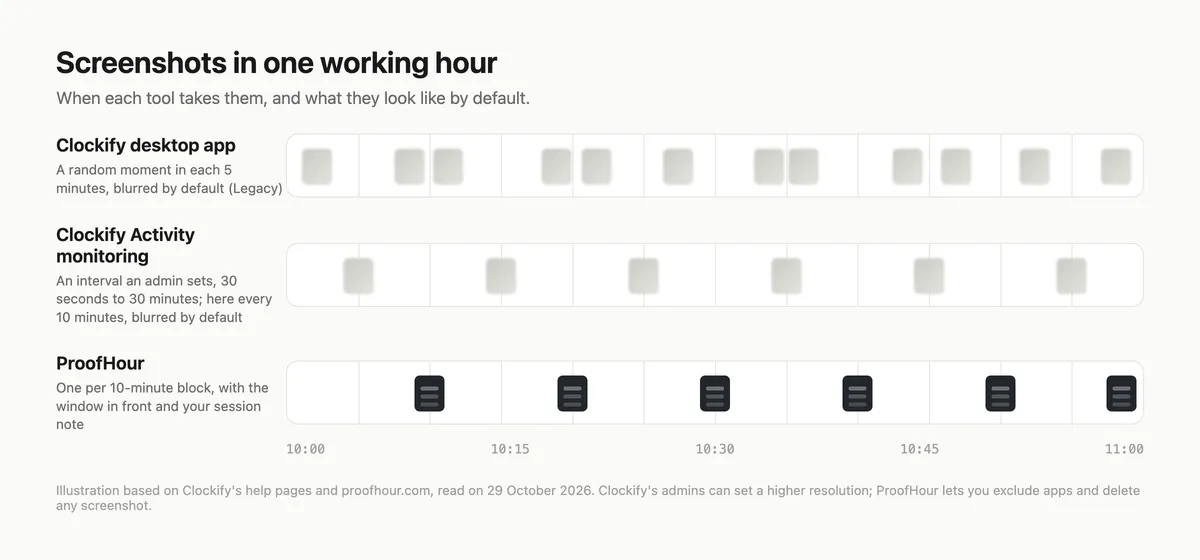
Where Clockify’s pages disagree, this post uses the help articles or leaves the point out.
Who controls the screenshots in each tool
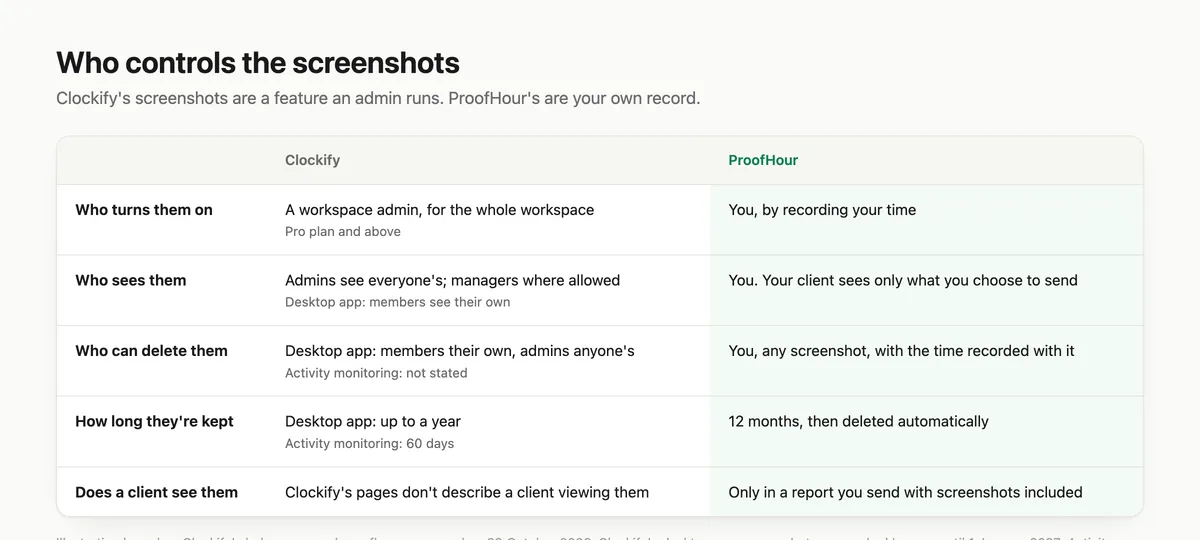
On Clockify, an admin does. A workspace admin switches screenshots on for the whole workspace and, in Activity monitoring, sets the interval and the blur. What members can do differs between the two systems.
- Desktop-app version. Every workspace member is notified when screenshots are switched on. Members can see and delete their own, though that also removes the time since the previous screenshot from the entry. Admins see and delete anyone’s, without that deduction.
- Activity monitoring. The help pages name admins, owners and team managers (where an admin has allowed it) as the people who use the feature. They do not say whether members are told when screenshots are on, can see their own, or who may delete. Clockify’s feature page says employees cannot open their own monitoring results, and that the agent runs whenever its device is active, with a manual off switch planned.
That is a coherent design for someone responsible for a team, and a different thing from a freelancer’s own record. A solo freelancer who owns a workspace is also its admin; a contractor working inside a client’s workspace may not be. Clockify’s shared-report help page does not mention screenshots, and none of its screenshot pages describe a client viewing them.
How ProofHour handles screenshots
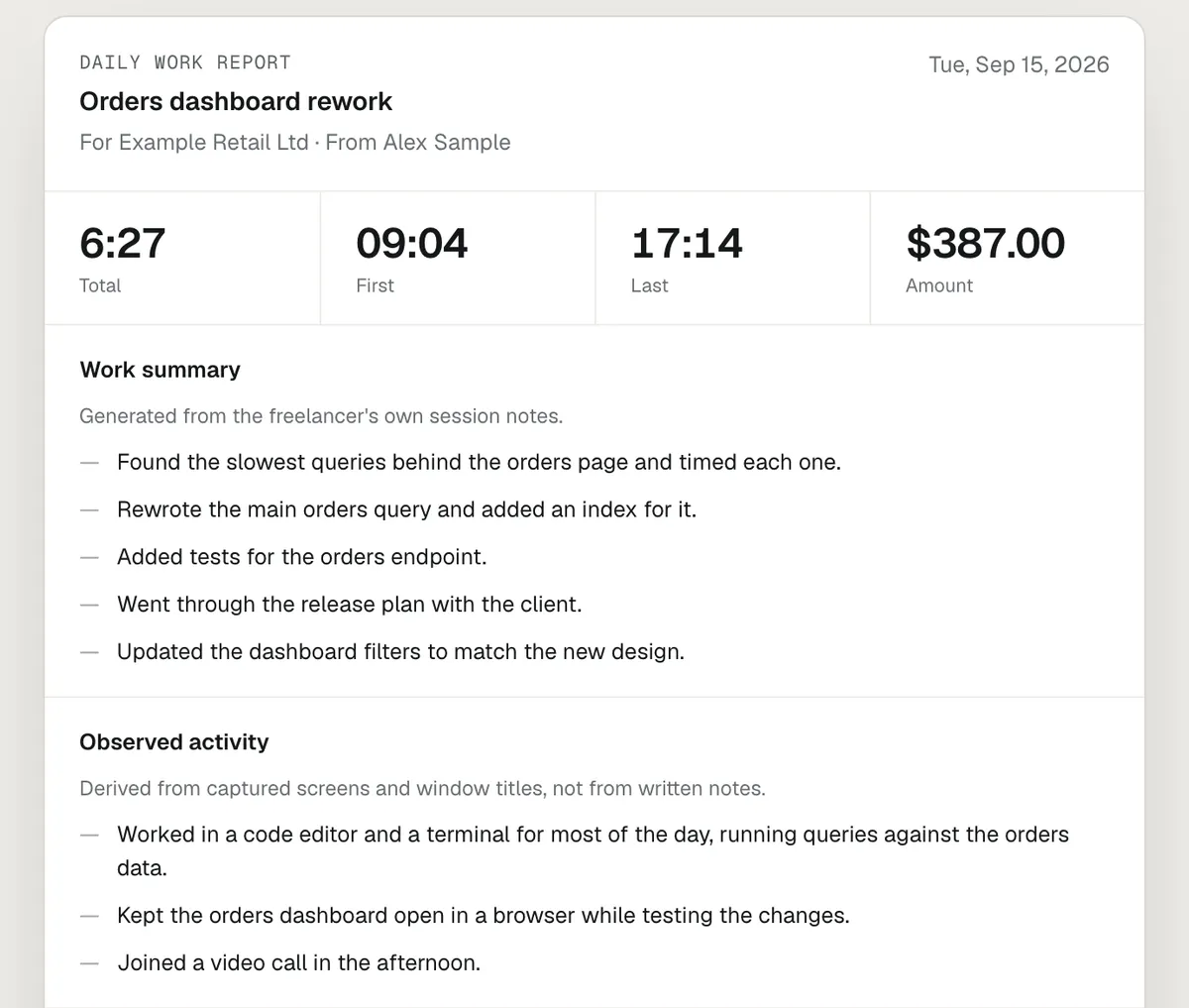
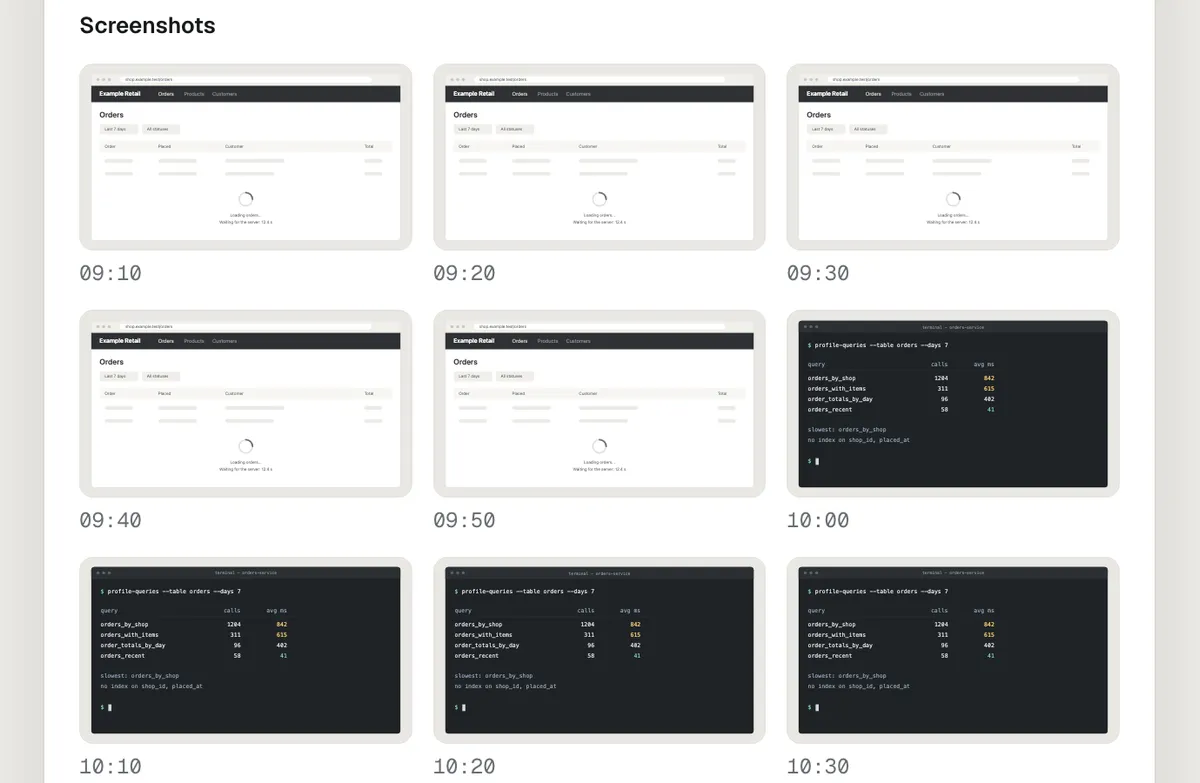
ProofHour starts from the other end: the screenshots are yours. It records your time in 10-minute blocks, each with a screenshot of your screen and the name of the window in front. The homepage says you decide when to record, what to keep and what to share, and the privacy policy says your account, records and screenshots are stored in Frankfurt, Germany.
- Your client sees what you send. The homepage says your client only sees what you choose to send, and the download page says you decide whether a report shares any screenshots. Your client needs no account; they open the report or invoice you send.
- You approve reports. A report drafted on your schedule goes to your client only when you press Approve and send. The exception is automatic sending, which is off until you turn it on, contract by contract; those reports go out on schedule without review.
- You choose what is captured. Name applications to exclude. While one is in front, no screenshot is taken and no window title is stored, though the time is still recorded.
- Deleting a screenshot deletes its time. Delete any individual screenshot and the time recorded with it is deleted too.
- Screenshots expire. They are deleted automatically after 12 months. The record that the hours were worked and billed stays.
- AI summaries are optional. On a contract where you switch them on, the screenshot itself is sent to ProofHour’s AI provider to be described. Switch them off and none is sent.
Clockify and ProofHour side by side
| Clockify | ProofHour | |
|---|---|---|
| Who switches screenshots on | A workspace admin | You decide when to record |
| How often | Desktop app: a random moment in each 5-minute interval. Activity monitoring: every 30 seconds to 30 minutes, set by an admin | One per 10-minute block |
| Who can see them | Desktop app: the member (their own) and admins (everyone’s). Activity monitoring: admins and team managers with access | Your client sees only what you choose to send; you decide whether a report shares any screenshots |
| Who can delete them | Desktop app: members their own (which also removes the time since the previous screenshot), admins anyone’s. Activity monitoring: not stated | You, any individual screenshot; the time recorded with it is deleted too |
| How long kept | Desktop app: up to one year. Activity monitoring: 60 days | 12 months, then deleted automatically |
| Plan needed | Pro or above: $7.99 per seat per month billed annually, $9.99 billed monthly | $9.99 per month or $97 per year |
| What a client can receive | A shared report link (paid plans), or an invoice from tracked time emailed (Standard and above) | A report or invoice you send, made from your recorded hours; no client account needed |
| Free option | Free plan for up to 5 users; 7-day trial of Pro features, no credit card | 30-day free trial, no credit card required |
The ProofHour homepage also lists $4.99 per month for the first year for the first 50 accounts.
Who should choose which
Choose Clockify if you manage people and want an admin to see how their time is spent, you want a free or low-cost tracker with invoicing, you need mobile apps, or you want to send clients a live report link. Its free plan takes no screenshots.
Choose ProofHour if you are a freelancer or contractor on hourly contracts, your clients ask what the hours went on, and you want screenshots to be your own record, included in a report only when you choose, with a report you review before it goes out and an invoice built from the same record. You need a Mac with Apple silicon, or a Windows PC running Windows 10 version 1809 or later (x64).
See what your client would get
The quickest check is the page your client would open. See a sample client report: the page says the freelancer, client, hours and screens in it are made up. If it is the kind of proof your clients would want, the 30-day free trial needs no credit card.
Clockify is a name of its owner and is used here only to describe the product being compared.
Sources
- https://clockify.me/help/apps/screenshots
- https://clockify.me/help/activity-monitoring/insights/activity-monitoring-screenshots
- https://clockify.me/help/activity-monitoring/activity-monitoring-quick-start-setup-guide
- https://clockify.me/help/activity-monitoring/overview/activity-monitoring-for-team-members
- https://clockify.me/features/activity-monitoring
- https://clockify.me/screenshot-recording-app
- https://clockify.me/pricing
- https://clockify.me/learn/resources/paid-features-explained/
- https://clockify.me/help/administration/updates-to-clockify-free-plan
- https://clockify.me/help/administration/free-trial
- https://clockify.me/help/projects/invoicing
- https://clockify.me/help/reports/sharing-reports
- https://clockify.me/help/getting-started/understand-use-your-reports
- https://www.proofhour.com/
- https://www.proofhour.com/privacy
- https://www.proofhour.com/download
- https://www.proofhour.com/sample-report
Try ProofHour with your next client.
Reports and invoices from one record. Free for 30 days, no card.
Questions people ask
Does Clockify take screenshots?
Yes, on paid plans. Clockify’s help pages put screenshots on the Pro plan and above, and the free plan has none. They come in two forms: the original version in the Windows and Mac desktop app, which Clockify marks as Legacy and says it will retire on 1 January 2027, and Activity monitoring, where a separate agent app on a work device takes them. A workspace admin switches either one on.
Who can see Clockify screenshots?
In the desktop-app version, members see their own screenshots and admins see everyone’s. In Activity monitoring, Clockify’s help pages name admins, owners and team managers, where an admin has allowed it, as the people who use screenshots. Clockify’s help pages do not say whether the person being captured can see their own, and Clockify’s feature page says employees cannot open their own monitoring results. None of the screenshot pages describe a client viewing them.
Is there a Clockify alternative where the freelancer controls the screenshots?
ProofHour is one, and it is our product. You decide when to record, you name the applications to exclude, you can delete any individual screenshot, and your client sees only what you choose to send, including whether a report shares any screenshots. If you manage a team and want an admin to see everyone’s work, Clockify fits that better.
Can my client see my screenshots in ProofHour?
Only if you send them in a report. ProofHour’s pages say your client only sees what you choose to send, that you decide whether a report shares any screenshots, and that nothing is shared until you send it. A report drafted on your schedule goes out only when you press Approve and send, unless you have turned on automatic sending for a contract. That setting is off by default and sends on schedule without review. Your client needs no account to open what you send.
How much do Clockify and ProofHour cost?
As of 29 October 2026, Clockify has a free plan for up to 5 users, without screenshots. Paid plans are priced per seat per month, billed annually with the monthly-billing price in brackets: Basic $3.99 ($4.99), Standard $5.49 ($6.99), Pro $7.99 ($9.99) and Enterprise $11.99 ($14.99). Screenshots need Pro or above, and invoicing needs Standard or above. ProofHour costs $9.99 per month or $97 per year after a 30-day free trial with no credit card, and its homepage lists $4.99 per month for the first year for the first 50 accounts.
Can I delete a screenshot in Clockify or ProofHour?
In Clockify’s desktop-app version, members can delete their own screenshots, except on locked or approved entries, and admins can delete anyone’s. A member’s deletion removes the time since the previous screenshot, and Clockify says deletion cannot be undone. For Activity monitoring, the help page describes deleting one or several screenshots from the Monitoring section but does not say who may. In ProofHour you can delete any individual screenshot, and the time recorded with it is deleted too. ProofHour also deletes screenshots automatically after 12 months.